
How do I monitor unpaid, overdue, and aging invoices?
Track accounts receivable health, filter invoices by payment status, and review 30/60/90+ day aging reports.
In YourMedSoft, to monitor unpaid, overdue, and aging invoices requires navigating to Invoicing & Client Billing in the portal, selecting the appropriate record or facility, and executing the validated workflow steps. The platform continuously validates clinical credentials, checks compliance matrices, and logs all actions to an immutable audit trail.
Clinical & Regulatory Compliance Standards
- Conforms to The Joint Commission (HCSS) clinical staffing standards.
- Maintains HIPAA-compliant data encryption and audit logging.
- Enforces state Board of Nursing licensure and clinical scope-of-practice rules.
Step-by-Step Instructions
Review Invoice List Statuses
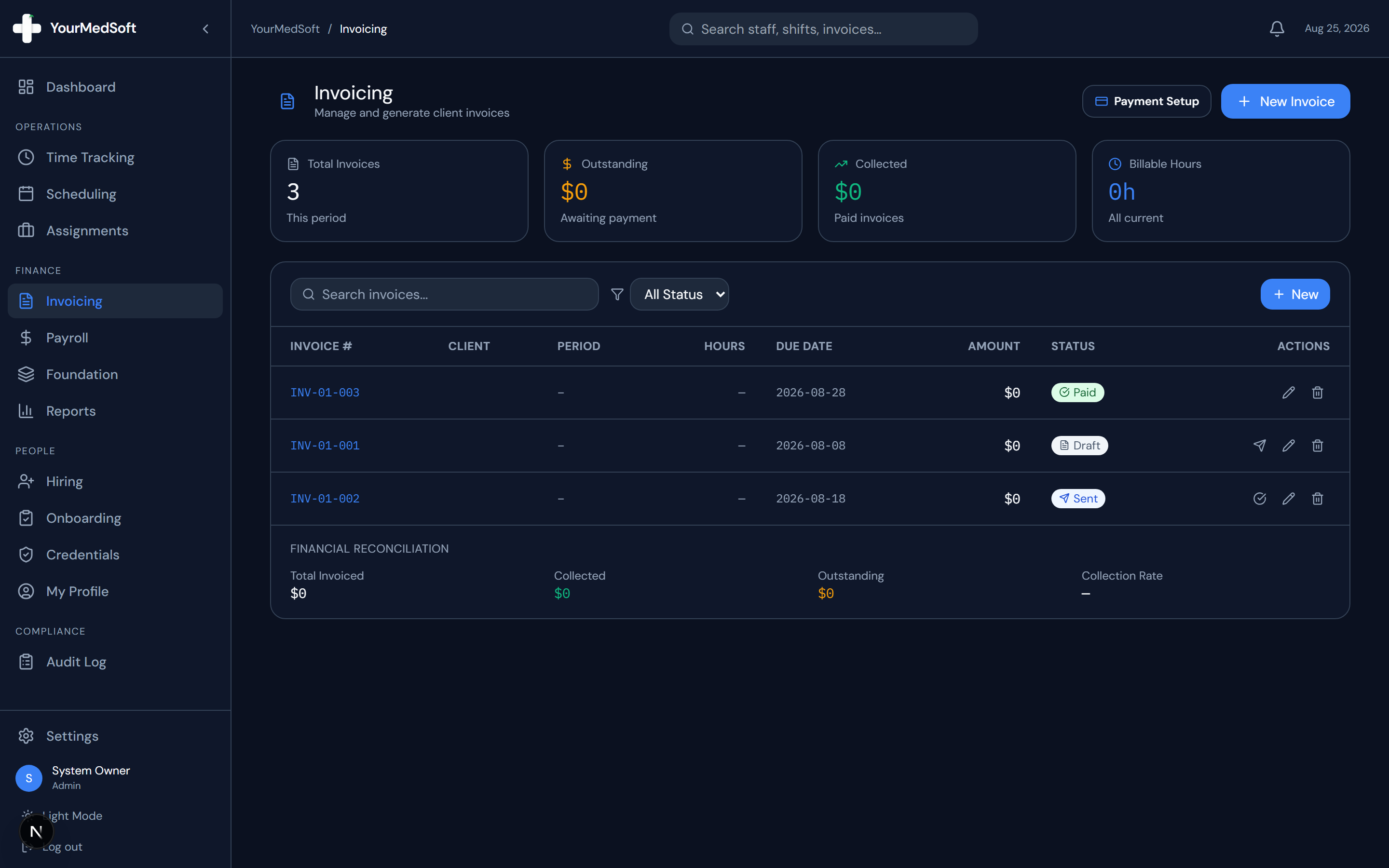
On the Invoicing page, review the color-coded status badges: Draft (Grey), Sent (Blue), Paid (Green), and Overdue (Red).
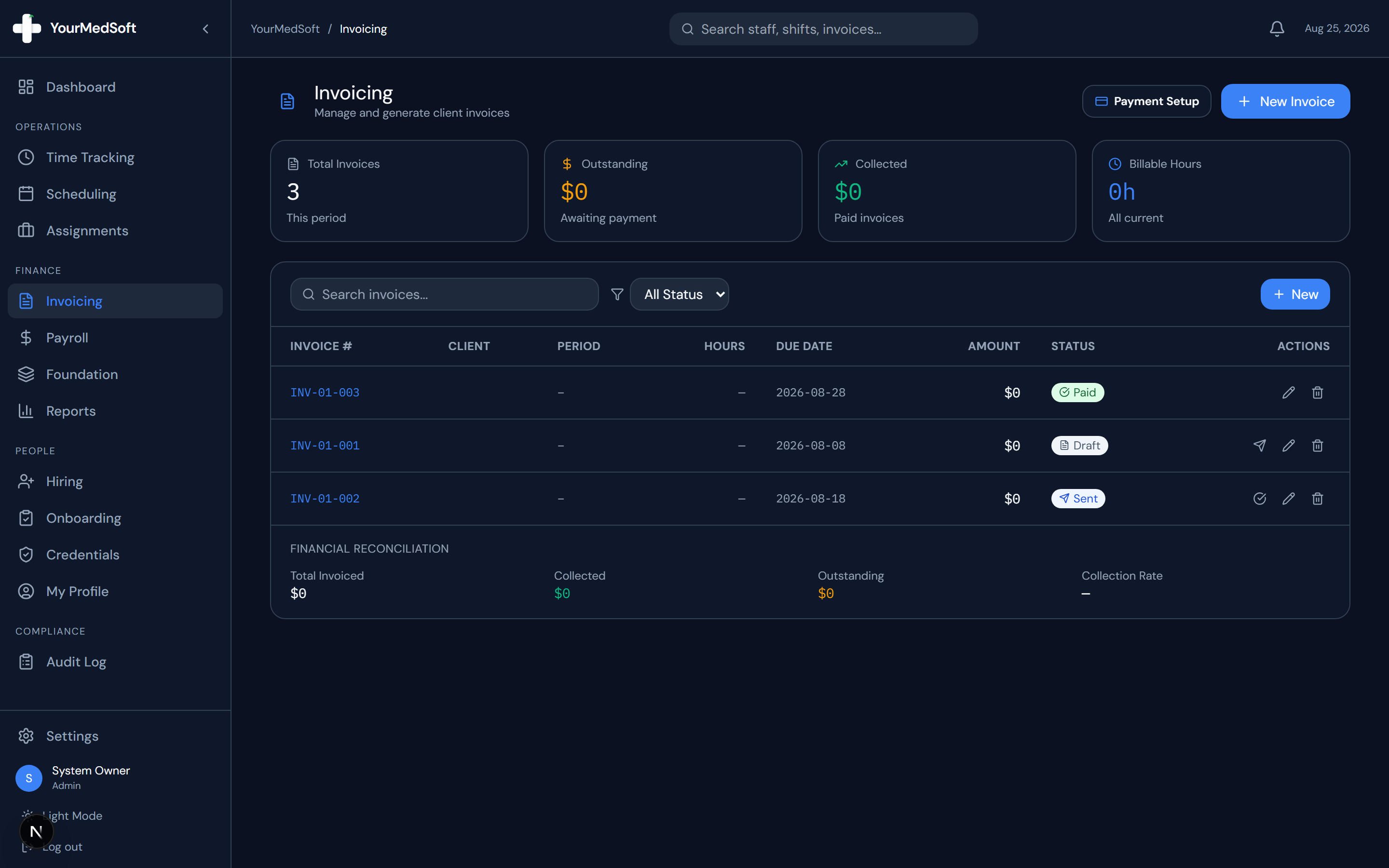
Invoice directory tracking sent invoices, payment statuses, and overdue accounts.
Filter by Status
Use the status filter dropdown in the table header to isolate "Overdue" invoices requiring follow-up.
Turn Approved Timesheets into Invoices in 1 Click
Stop spending days reconciling hours. YourMedSoft auto-calculates overtime, applies facility billing terms, and syncs directly with QuickBooks.
Inspect the Invoice Aging Report
Navigate to Reports > Invoice Aging to view total outstanding balances grouped by age: Current (0–30 days), 31–60 days, 61–90 days, and 90+ days overdue.
Pro-Tips & Best Practices
- The Revenue MTD widget on your Operations Dashboard displays current monthly collections vs. pending unbilled receivables in real time.
Troubleshooting & Operational Edge Cases
Issue: Assignment or Action Blocked
Operational Resolution: Verify that all prerequisites and credential requirements are satisfied before requesting an Admin override.
Issue: Notification or Alert Delay
Operational Resolution: Check the clinician profile contact details to ensure SMS and email alert preferences are enabled.
Frequently Asked Questions & Troubleshooting
How do I mark an invoice as paid when a check or ACH arrives?
In the Invoice List, click the actions menu on the invoice row and select "Mark as Paid".
Was this guide helpful?
Your feedback helps us continuously improve our documentation.
Recommended for Invoicing & Client Billing
Healthcare Facility Master Services Agreement (MSA)
Comprehensive staffing agreement with Net-30 terms, indemnification, and facility rate schedules.
Gross Margin & Spread Modeler
Model VMS transaction fee cuts (2-4%) and facility payment terms on net profitability.
Travel Nursing Staffing Software
Consolidate multi-facility billing with 3-way timesheet matching and 1-click QuickBooks export.