
How do I convert a hired applicant directly into active staff?
Automatically transfer an applicant’s contact details, role, and specialty into your active clinician roster with compensation settings in one click.
In YourMedSoft, to convert a hired applicant directly into active staff requires navigating to Hiring & Job Board in the portal, selecting the appropriate record or facility, and executing the validated workflow steps. The platform continuously validates clinical credentials, checks compliance matrices, and logs all actions to an immutable audit trail.
What You Need Before Starting
- A candidate in the "Offer" or "Hired" stage in your hiring pipeline.
Clinical & Regulatory Compliance Standards
- Conforms to The Joint Commission (HCSS) clinical staffing standards.
- Maintains HIPAA-compliant data encryption and audit logging.
- Enforces state Board of Nursing licensure and clinical scope-of-practice rules.
Step-by-Step Instructions
Open Candidate Profile
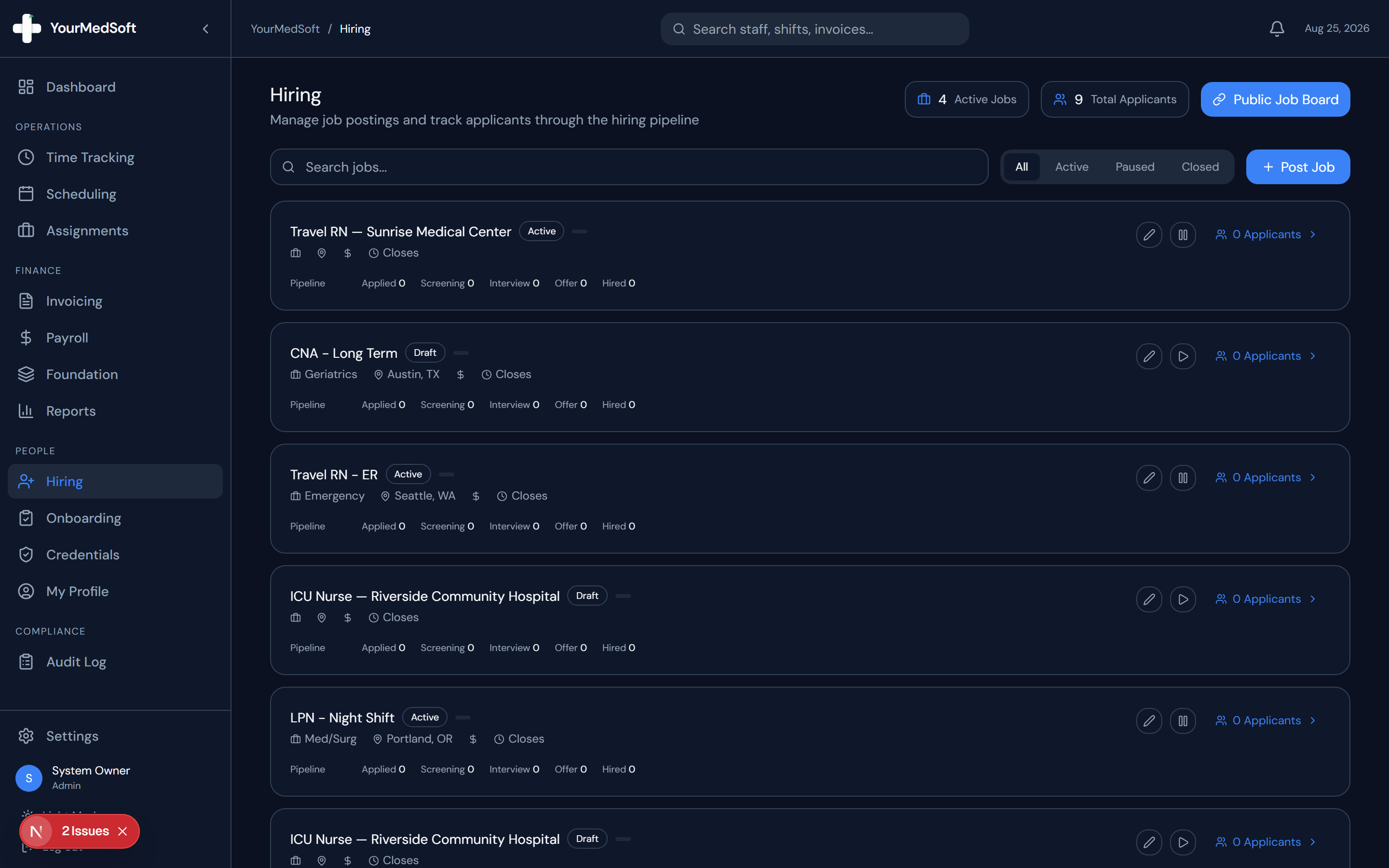
In the Applicant Pipeline, click on the candidate who has accepted your job offer.
Click Convert to Staff
Click the green "Convert to Staff" button in the candidate action bar.
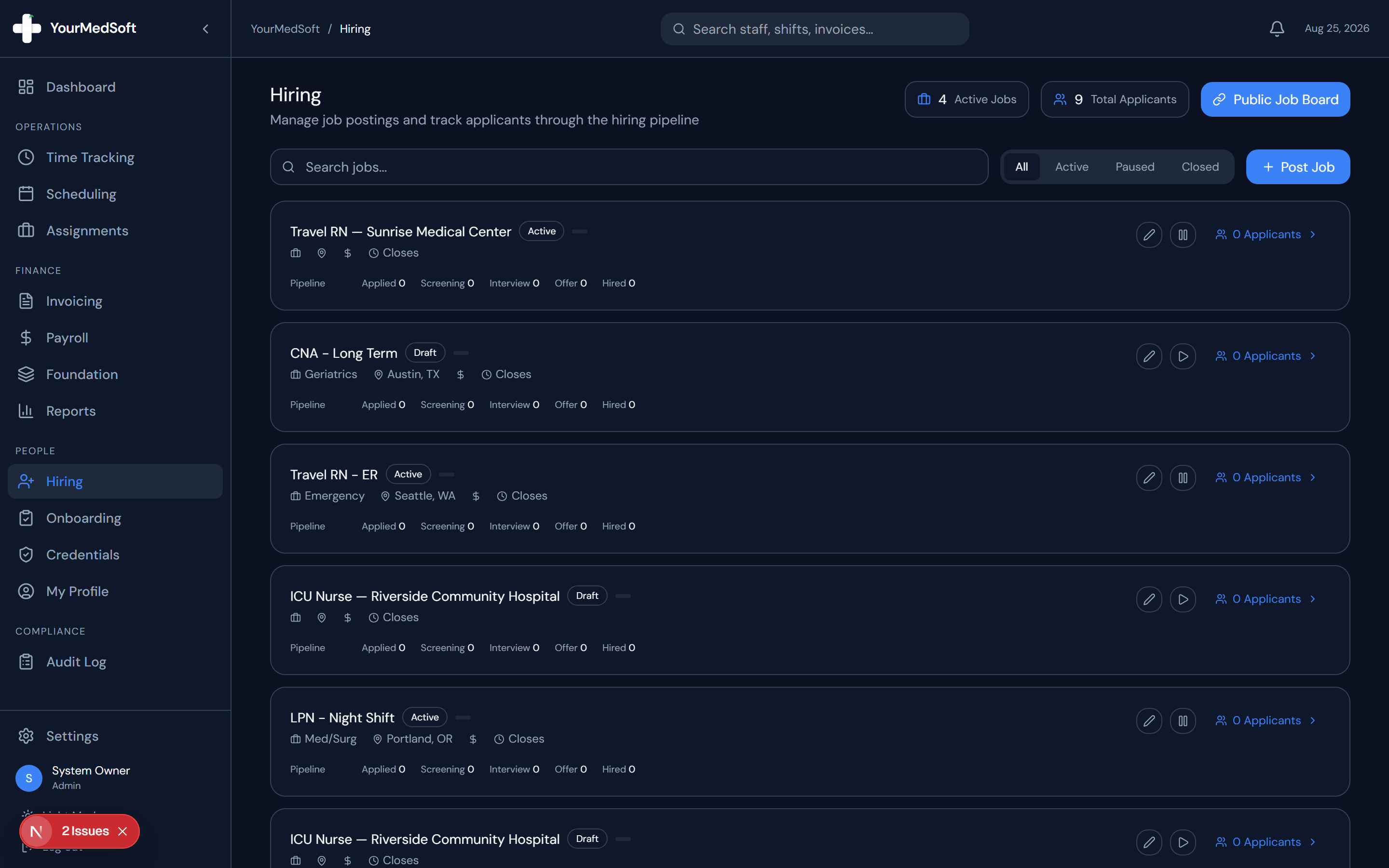
Onboarding pipeline and candidate conversion to active clinician status.
Convert Applicants into Shift-Ready Nurses 4x Faster
Accelerate healthcare recruitment with self-service mobile onboarding, automated skills checklists, and 1-click credential verification.
Configure Placement Terms
The conversion modal opens with pre-filled name, email, and phone. Select the Employment Type (Full-time, Contract, Per Diem), Specialty, Department, and agreed Base Pay Rate ($/hr).
Confirm Conversion
Click "Confirm Conversion". The system creates an active staff profile, grants portal access, and updates the candidate stage to Hired.
Pro-Tips & Best Practices
- Converting directly eliminates double data entry and ensures email addresses match across hiring and payroll.
Troubleshooting & Operational Edge Cases
Issue: Assignment or Action Blocked
Operational Resolution: Verify that all prerequisites and credential requirements are satisfied before requesting an Admin override.
Issue: Notification or Alert Delay
Operational Resolution: Check the clinician profile contact details to ensure SMS and email alert preferences are enabled.
Frequently Asked Questions & Troubleshooting
Does the converted clinician automatically receive portal access?
Yes. They will receive an automated invitation email to log into the portal and complete their credential uploads.
Was this guide helpful?
Your feedback helps us continuously improve our documentation.
Recommended for Hiring & Job Board
Travel Nurse Assignment Contract Template
Deploy newly hired clinicians quickly with standardized assignment contracts and e-signatures.
Gross Margin & Spread Modeler
Evaluate candidate pay requirements against facility bill rates before extending offers.
Allied Health Staffing Software
Accelerate healthcare recruitment with self-service mobile credential onboarding.