
How do individuals and admins upload credentials (PDF, CSV, or Image) and run automated checks?
Upload state nursing licenses, BLS/ACLS certificates, CDC SAMS PDFs, or CSV spreadsheets as an individual clinician or admin, with automatic AI OCR and federal OIG/SAM/NPPES screening.
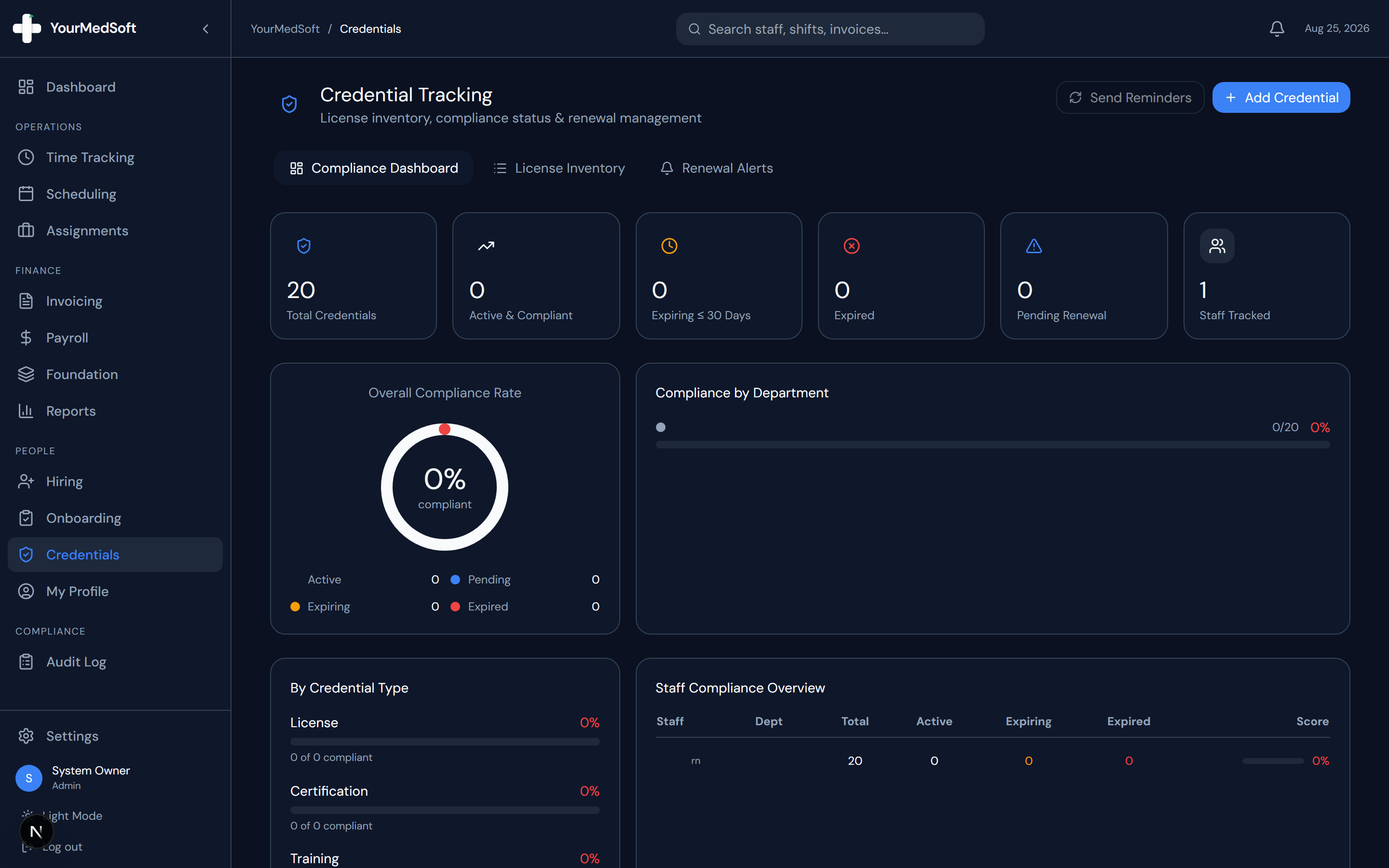
In YourMedSoft, to upload and manage clinician licenses and certifications requires navigating to Credentials & Compliance in the portal, selecting the appropriate record or facility, and executing the validated workflow steps. The platform continuously validates clinical credentials, checks compliance matrices, and logs all actions to an immutable audit trail.
What You Need Before Starting
- Credential PDF, CSV spreadsheet, or image file ready on your computer or phone.
Clinical & Regulatory Compliance Standards
- Conforms to The Joint Commission (HCSS) clinical staffing standards.
- Maintains HIPAA-compliant data encryption and audit logging.
- Enforces state Board of Nursing licensure and clinical scope-of-practice rules.
Step-by-Step Instructions
Open Credentials or My Profile > Credentials
Individual clinicians can open either "My Profile > Credentials" (/portal/my-profile) or "Credentials" (/portal/credentials) in the sidebar. Admins and coordinators open "Credentials" (/portal/credentials) to manage and view all organization records.
Upload a Single PDF / Image or Bulk Import CSV / Multiple PDFs
Click "+ Add Credential" (or "Upload PDF / Credential") for a single PDF or photo, or click "Import CSV / PDF" in the header to batch-upload a CSV spreadsheet or multiple PDF credential files at once.
Automate Your Healthcare Staffing Operations
YourMedSoft unifies scheduling, GPS time tracking, credentialing, and facility invoicing into one modern platform for healthcare agencies.
Review Automatic AI OCR Field Extraction
As soon as you select or drop a PDF or image, Gemini AI Vision OCR automatically extracts the Credential Name, Type, License/NPI Number, Issuing Body, Issuing State, and Expiration Date.
Save to Trigger Automatic Federal OIG, SAM.gov & NPPES Screening
Click "Save & Auto-Verify Credential" (or "Upload & Auto-Verify"). YourMedSoft immediately screens the clinician in the background against 84,000+ federal HHS-OIG LEIE records, CMS NPPES Registry, and SAM.gov, and updates the Joint Commission (TJC) Audit checklist automatically.
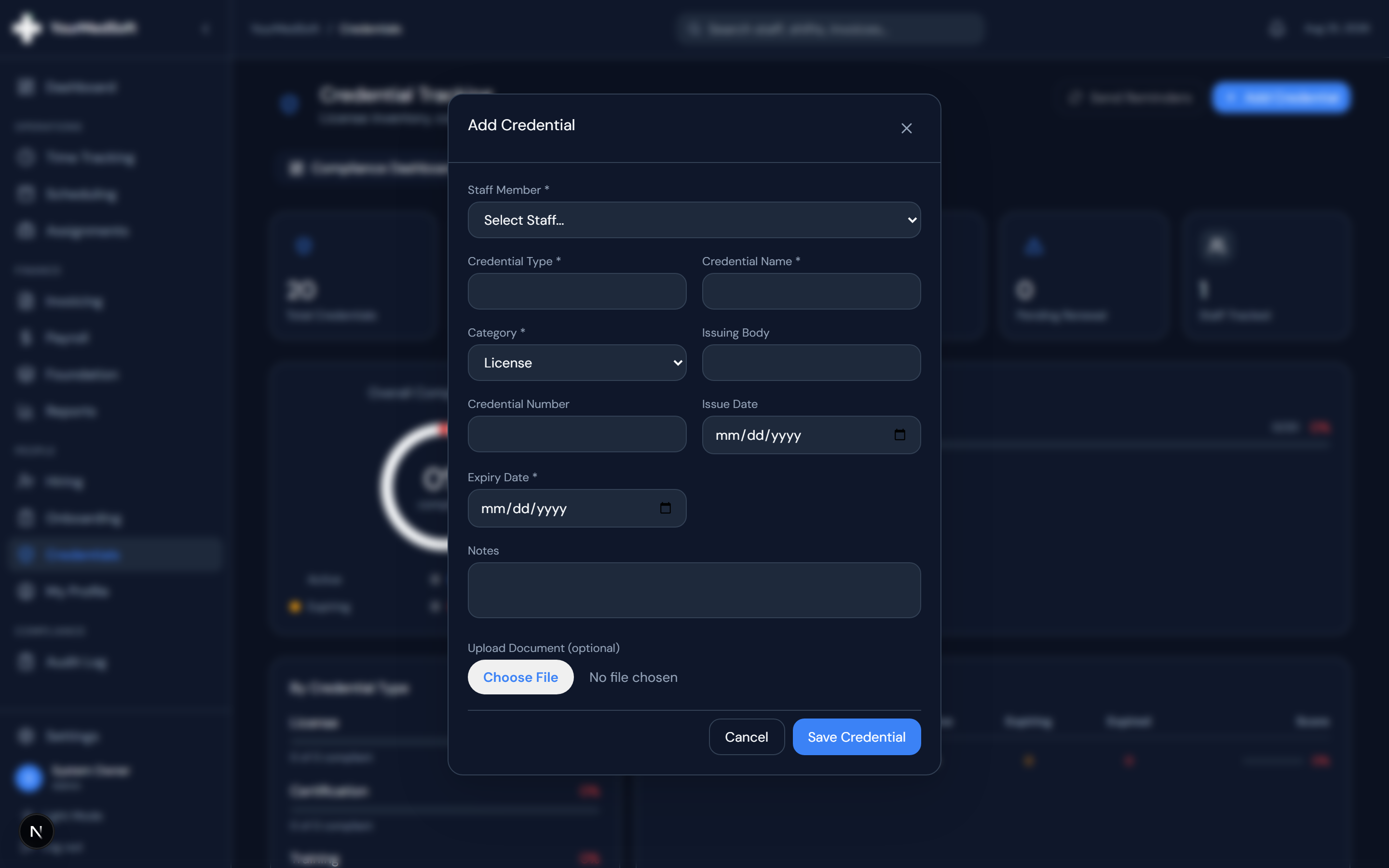
PDF/CSV credential upload modal with AI OCR auto-fill and automatic OIG/SAM verification.
Admin / Account Owner Visibility & Manual Re-Check
All credentials uploaded by individuals are immediately visible to admins and account owners in License Inventory and Joint Commission Audit. Anyone can also click the eye icon to download the PDF or click "Run OIG / SAMS Check" manually at any time.
Pro-Tips & Best Practices
- Both individual clinicians and admins can upload PDFs or CSV files—every upload automatically runs the federal OIG/SAM/NPPES check in the background.
- To re-screen the entire organization at once, open the Joint Commission (TJC) Audit tab and click "Auto-Screen Roster (OIG / SAM)".
Troubleshooting & Operational Edge Cases
Issue: Assignment or Action Blocked
Operational Resolution: Verify that all prerequisites and credential requirements are satisfied before requesting an Admin override.
Issue: Notification or Alert Delay
Operational Resolution: Check the clinician profile contact details to ensure SMS and email alert preferences are enabled.
Frequently Asked Questions & Troubleshooting
What happens automatically when I upload a credential PDF or CSV?
First, Gemini AI OCR extracts the license number, issuing body, state, and expiration date from your PDF or image. Second, when saved, YourMedSoft automatically queries the 84,000+ record HHS-OIG LEIE database, CMS NPPES, and SAM.gov in the background, marks your OIG/SAM compliance status as Cleared, writes an immutable HIPAA audit log, and shares the record with your agency admins.
What file formats are supported for individuals and admins?
PDF (.pdf), CSV (.csv), Excel (.xls/.xlsx), JSON, JPG, PNG, and WebP files are supported across both single uploads and bulk imports.
Was this guide helpful?
Your feedback helps us continuously improve our documentation.
Recommended for Credentials & Compliance
Joint Commission 10-Point Credentialing Checklist
Audit-ready verification protocol for primary source licensure, OIG exclusions, and immunizations.
41+ State eNLC Compact License Map
Instant verification of compact state reciprocity and primary state of residence requirements.
Hospital Float Pool Software
Enforce acute care certifications (BLS, ACLS, PALS, NIHSS) before any shift assignment.