
How do I monitor license expirations and renewal alerts?
Use the Compliance Dashboard and Renewal Alerts view to proactively identify expiring worker licenses and prevent staffing gaps.
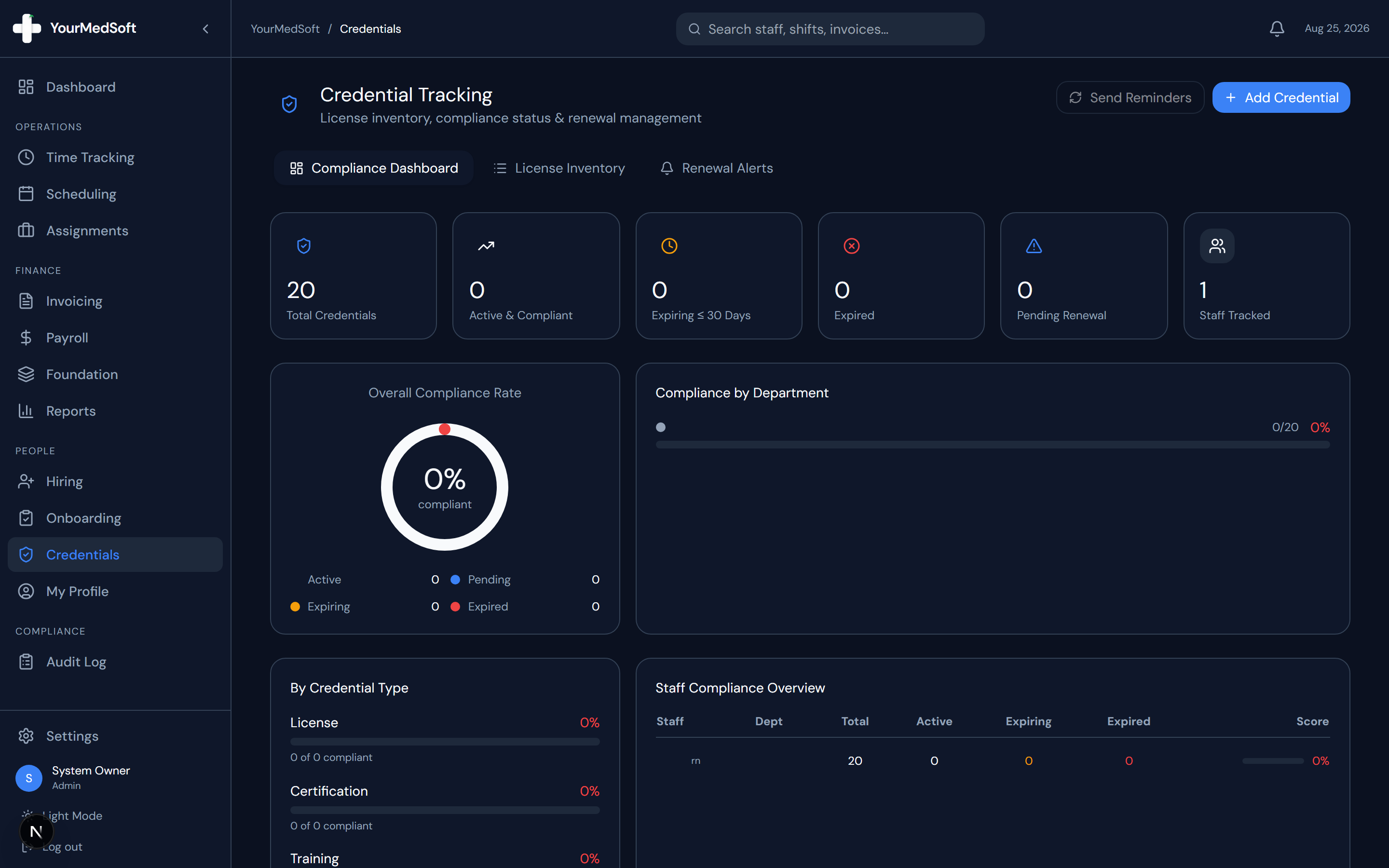
In YourMedSoft, to monitor license expirations and renewal alerts requires navigating to Credentials & Compliance in the portal, selecting the appropriate record or facility, and executing the validated workflow steps. The platform continuously validates clinical credentials, checks compliance matrices, and logs all actions to an immutable audit trail.
Clinical & Regulatory Compliance Standards
- Conforms to The Joint Commission (HCSS) clinical staffing standards.
- Maintains HIPAA-compliant data encryption and audit logging.
- Enforces state Board of Nursing licensure and clinical scope-of-practice rules.
Step-by-Step Instructions
Check the Dashboard Alert Bell & Widget
The Operations Dashboard displays an immediate count of all credentials expiring within 30 days. Clicking "View all" jumps directly to the alerts view.
Open the Renewal Alerts Tab
In the Credentials module, click the "Renewal Alerts" tab in the header. Expired items appear at the top in red, followed by expiring items in amber.
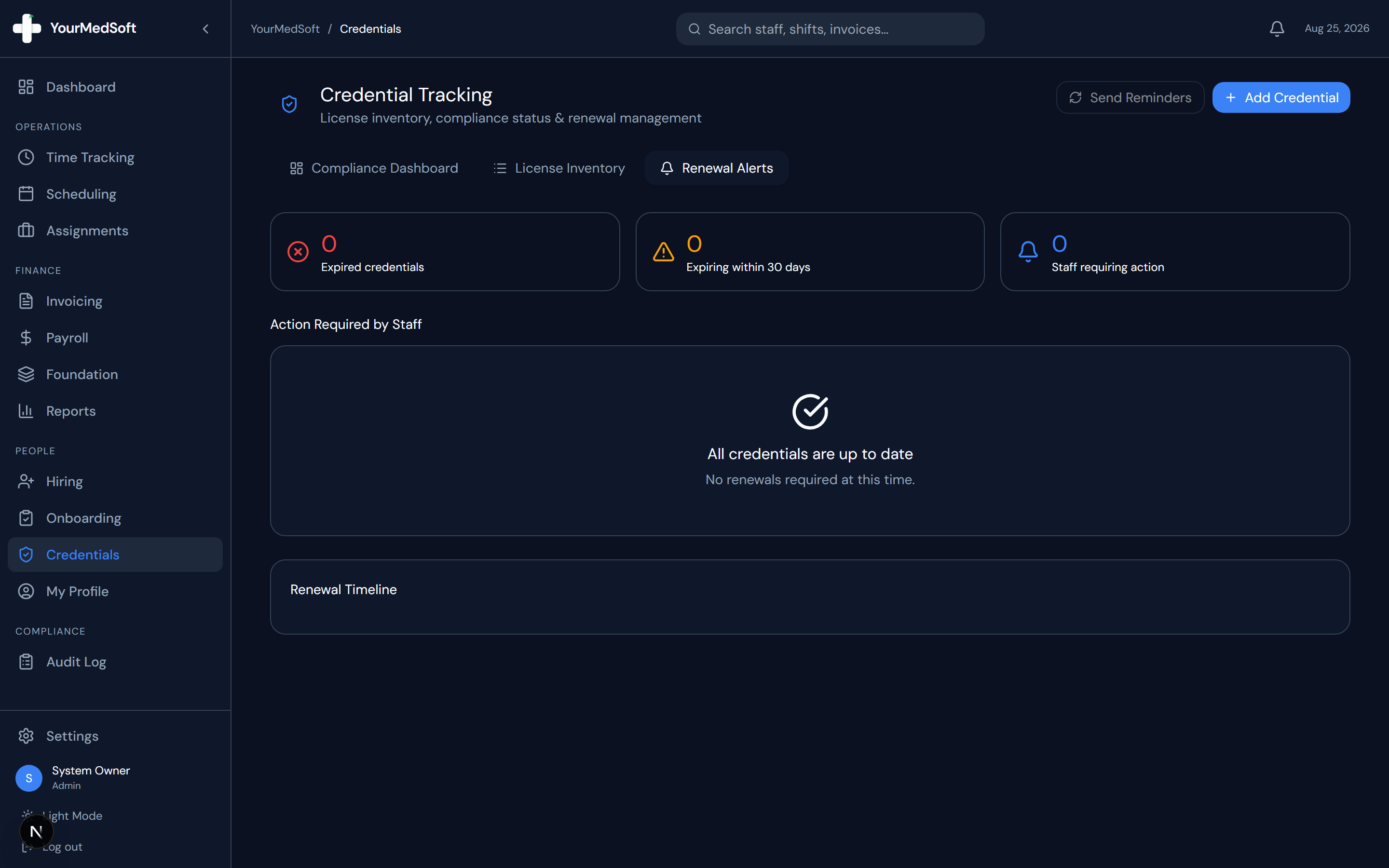
Credential inventory showing active clinician compliance statuses, expiration dates, and verification records.
Automate Your Healthcare Staffing Operations
YourMedSoft unifies scheduling, GPS time tracking, credentialing, and facility invoicing into one modern platform for healthcare agencies.
Review Days Remaining
Each entry displays the clinician name, license title, and exact countdown of days remaining until expiration.
Update After Renewal
Once the clinician provides an updated license, click on the record in the License Inventory tab to update the expiration date and attach the new PDF.
Pro-Tips & Best Practices
- The "Compliance Score" on the dashboard provides an overall percentage rating of your agency’s total credential health.
- Automated background cron jobs run daily to notify workers and compliance managers via in-app alerts and transactional emails at 30, 14, and 7 days prior to expiry.
Troubleshooting & Operational Edge Cases
Issue: Assignment or Action Blocked
Operational Resolution: Verify that all prerequisites and credential requirements are satisfied before requesting an Admin override.
Issue: Notification or Alert Delay
Operational Resolution: Check the clinician profile contact details to ensure SMS and email alert preferences are enabled.
Frequently Asked Questions & Troubleshooting
Does the system send automated email alerts to clinicians?
Yes. Daily background cron verification routines check all expiration dates and dispatch formatted warning emails with direct renewal upload buttons to clinicians as soon as their licenses cross 30, 14, or 7-day expiration thresholds.
What happens if a license expires completely without renewal?
The system automatically marks the clinician as non-compliant and prevents coordinators from scheduling them for shifts without an explicit admin compliance override.
Was this guide helpful?
Your feedback helps us continuously improve our documentation.
Recommended for Credentials & Compliance
Joint Commission 10-Point Credentialing Checklist
Audit-ready verification protocol for primary source licensure, OIG exclusions, and immunizations.
41+ State eNLC Compact License Map
Instant verification of compact state reciprocity and primary state of residence requirements.
Hospital Float Pool Software
Enforce acute care certifications (BLS, ACLS, PALS, NIHSS) before any shift assignment.