
How do I assign a shift to a healthcare worker?
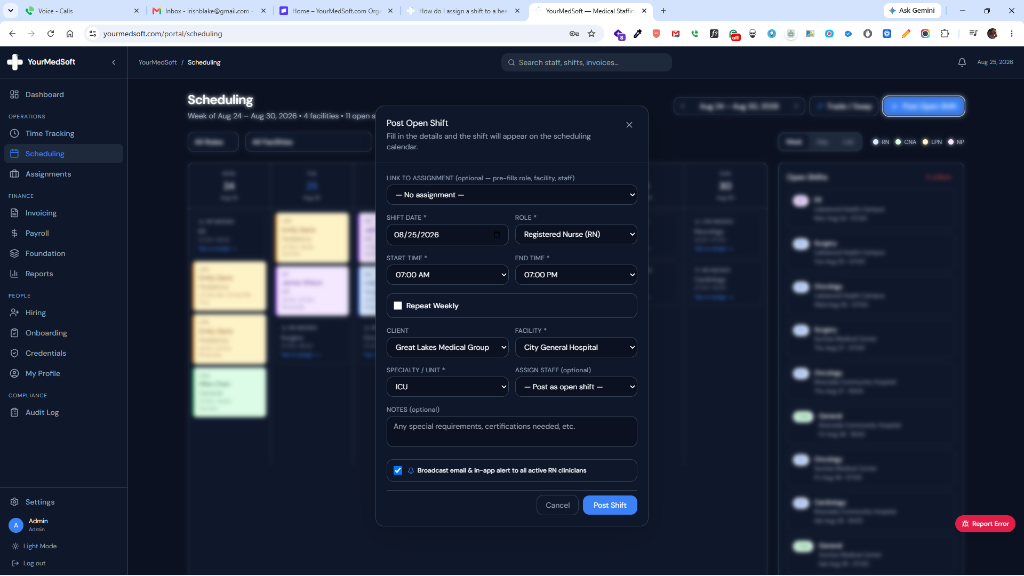
Find available clinicians who match the required role and specialty, verify their license status, and assign them to an open shift.
In YourMedSoft, to assign a shift to a healthcare worker requires navigating to Shift Scheduling in the portal, selecting the appropriate record or facility, and executing the validated workflow steps. The platform continuously validates clinical credentials, checks compliance matrices, and logs all actions to an immutable audit trail.
What You Need Before Starting
- An open shift must exist on the scheduling calendar.
- Active clinicians with matching credentials must be registered in the system.
Clinical & Regulatory Compliance Standards
- Conforms to The Joint Commission (HCSS) clinical staffing standards.
- Maintains HIPAA-compliant data encryption and audit logging.
- Enforces state Board of Nursing licensure and clinical scope-of-practice rules.
Step-by-Step Instructions
Locate the Open Shift
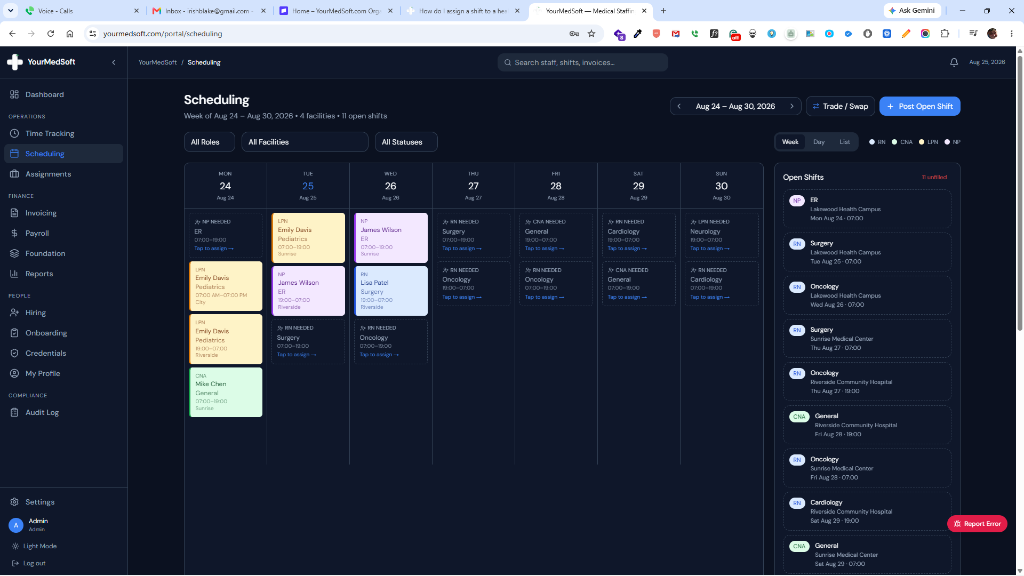
On the Scheduling calendar or the "Open Shifts" right-hand sidebar, click on any shift marked as unfilled (dashed border with "Tap to assign").
Scheduling calendar with open shift slots and staff availability sidebar.
Review Matching Clinicians
The assignment modal opens and automatically lists clinicians who match the required clinical role (RN, CNA, etc.) and specialty.
Tired of Manual Shift Texts & Phone Trees?
YourMedSoft broadcasts open shifts to hundreds of pre-vetted, compliant nurses in under 60 seconds. Eliminate double-booking and fill vacancies instantly.
Select the Clinician
Click on the clinician you wish to assign. The system immediately executes an automated compliance check in the background.
Confirm Credential Status
Verify that the compliance badge displays a green "Compliant" status. If licenses are expiring soon, a yellow warning banner will detail the upcoming renewal date.
Click Assign
Click the blue "Assign" button. The shift changes to the color-coded role card (e.g., Teal for RN, Blue for CNA) and syncs across all user dashboards in real time.
Pro-Tips & Best Practices
- The "Staff Available Today" widget on the right sidebar displays clinicians who have declared availability for the selected calendar day.
- Assigned clinicians can immediately view their newly scheduled shift in their mobile portal.
Troubleshooting & Operational Edge Cases
Issue: Assignment or Action Blocked
Operational Resolution: Verify that all prerequisites and credential requirements are satisfied before requesting an Admin override.
Issue: Notification or Alert Delay
Operational Resolution: Check the clinician profile contact details to ensure SMS and email alert preferences are enabled.
Frequently Asked Questions & Troubleshooting
Why is the Assign button disabled?
The Assign button is disabled if no staff member is selected, if a compliance check is still calculating, or if the selected clinician is non-compliant and no administrative override reason has been entered.
Was this guide helpful?
Your feedback helps us continuously improve our documentation.
Recommended for Shift Scheduling
Travel Nurse Assignment Contract Template
Free 13-week assignment agreement with guaranteed hours clauses and hospital floating policies.
Gross Margin & Spread Modeler
Simulate clinician bill-to-pay spreads, overtime multipliers, and statutory employer payroll burden.
Per Diem Nurse Registry Platform
Broadcast open shifts, eliminate callout delays, and enforce automated credential gates.