
How do I set weekly availability, shift preferences, and blackout dates?
Configure recurring day/evening/night shift availability, minimum/maximum weekly hours, and schedule blackout dates for time off.
In YourMedSoft, to set weekly availability, shift preferences, and blackout dates requires navigating to Staff & Worker Profiles in the portal, selecting the appropriate record or facility, and executing the validated workflow steps. The platform continuously validates clinical credentials, checks compliance matrices, and logs all actions to an immutable audit trail.
What You Need Before Starting
- Access to My Profile or worker profile in the portal.
Clinical & Regulatory Compliance Standards
- Conforms to The Joint Commission (HCSS) clinical staffing standards.
- Maintains HIPAA-compliant data encryption and audit logging.
- Enforces state Board of Nursing licensure and clinical scope-of-practice rules.
Step-by-Step Instructions
Open Availability Schedule
Click "My Profile" in the sidebar and select the "Availability" tab in the header.
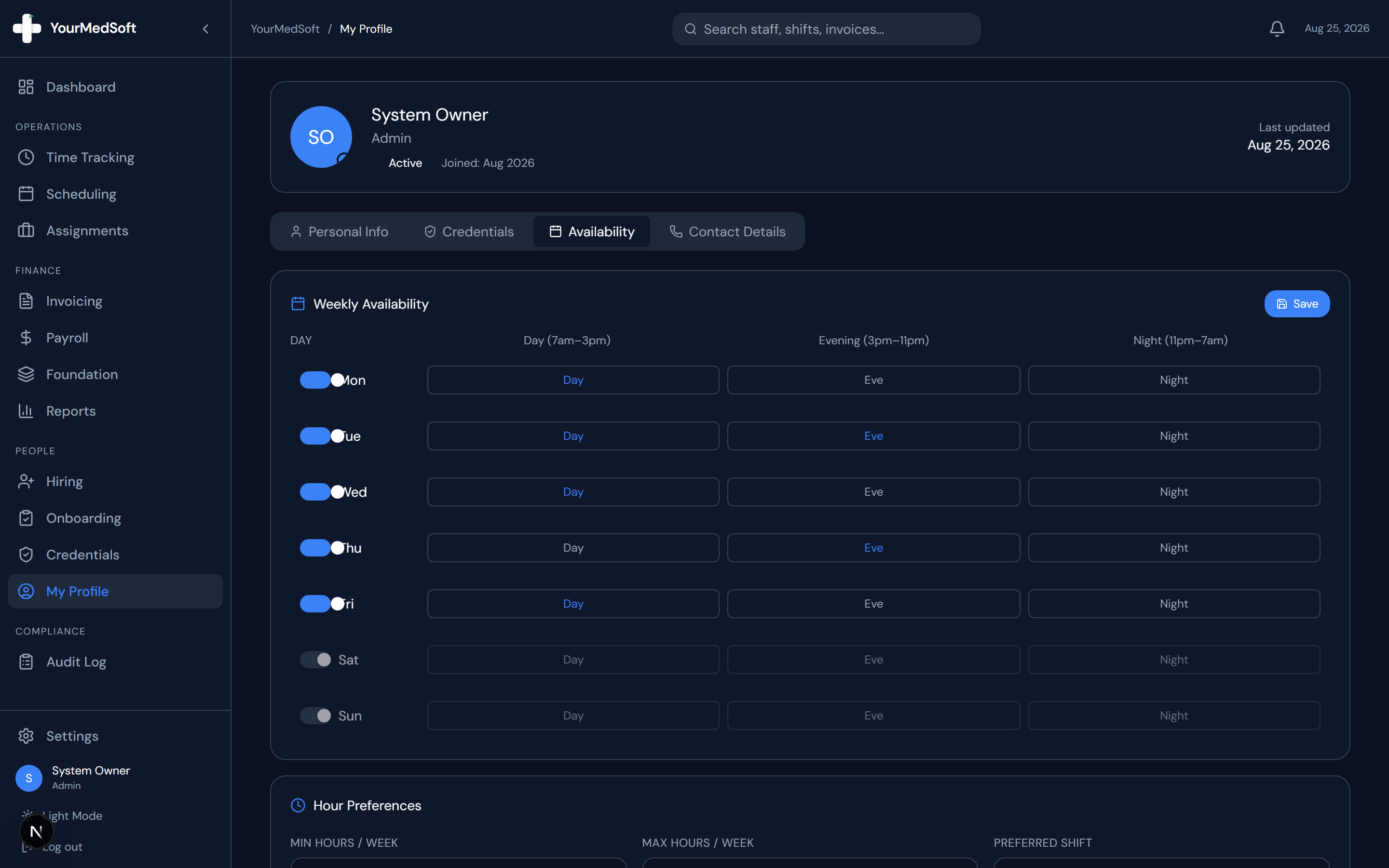
Clinician profile settings and weekly recurring availability schedule.
Toggle Daily Availability
For each day of the week (Monday through Sunday), toggle the day switch On or Off to indicate if you are open for shifts.
Automate Your Healthcare Staffing Operations
YourMedSoft unifies scheduling, GPS time tracking, credentialing, and facility invoicing into one modern platform for healthcare agencies.
Select Shift Windows
For active days, click Day (7am–3pm), Eve (3pm–11pm), or Night (11pm–7am) to indicate which specific shift windows you can work.
Set Weekly Hours Preferences
Enter your desired Minimum Hours / Week and Maximum Hours / Week to help coordinators balance your workload.
Add Blackout Dates (Time Off)
Under the Blackout Dates section, pick specific calendar dates when you will be unavailable, then click "Add Date".
Save Preferences
Click the blue "Save" button in the upper right. Coordinators will immediately see your updated availability when building schedules.
Pro-Tips & Best Practices
- Blackout dates prevent coordinators from inadvertently scheduling you on approved vacation days.
Troubleshooting & Operational Edge Cases
Issue: Assignment or Action Blocked
Operational Resolution: Verify that all prerequisites and credential requirements are satisfied before requesting an Admin override.
Issue: Notification or Alert Delay
Operational Resolution: Check the clinician profile contact details to ensure SMS and email alert preferences are enabled.
Frequently Asked Questions & Troubleshooting
Can coordinators override my declared availability?
Coordinators can view your preferences when assigning shifts. If an urgent placement is needed, the system will highlight the preference difference for review.
Was this guide helpful?
Your feedback helps us continuously improve our documentation.
Recommended for Staff & Worker Profiles
Joint Commission 10-Point Credentialing Checklist
Standardized clinician compliance file checklist for primary source verification and TB clearance.
41+ State eNLC Compact License Map
Check multi-state licensure privileges and reciprocity across 41 participating jurisdictions.
Allied Health Staffing Platform
Onboard and manage physical therapists, radiologic techs, and medical lab technologists.