
How do I create a long-term assignment or travel contract?
Set up multi-week placements, override default hourly pay/bill rates, configure weekly housing stipends, and record daily per diem allowances.
In YourMedSoft, to create a long-term assignment or travel contract requires navigating to Assignments & Contracts in the portal, selecting the appropriate record or facility, and executing the validated workflow steps. The platform continuously validates clinical credentials, checks compliance matrices, and logs all actions to an immutable audit trail.
What You Need Before Starting
- The clinician, facility, and client company must already be created in the system.
Clinical & Regulatory Compliance Standards
- Conforms to The Joint Commission (HCSS) clinical staffing standards.
- Maintains HIPAA-compliant data encryption and audit logging.
- Enforces state Board of Nursing licensure and clinical scope-of-practice rules.
Step-by-Step Instructions
Navigate to Assignments
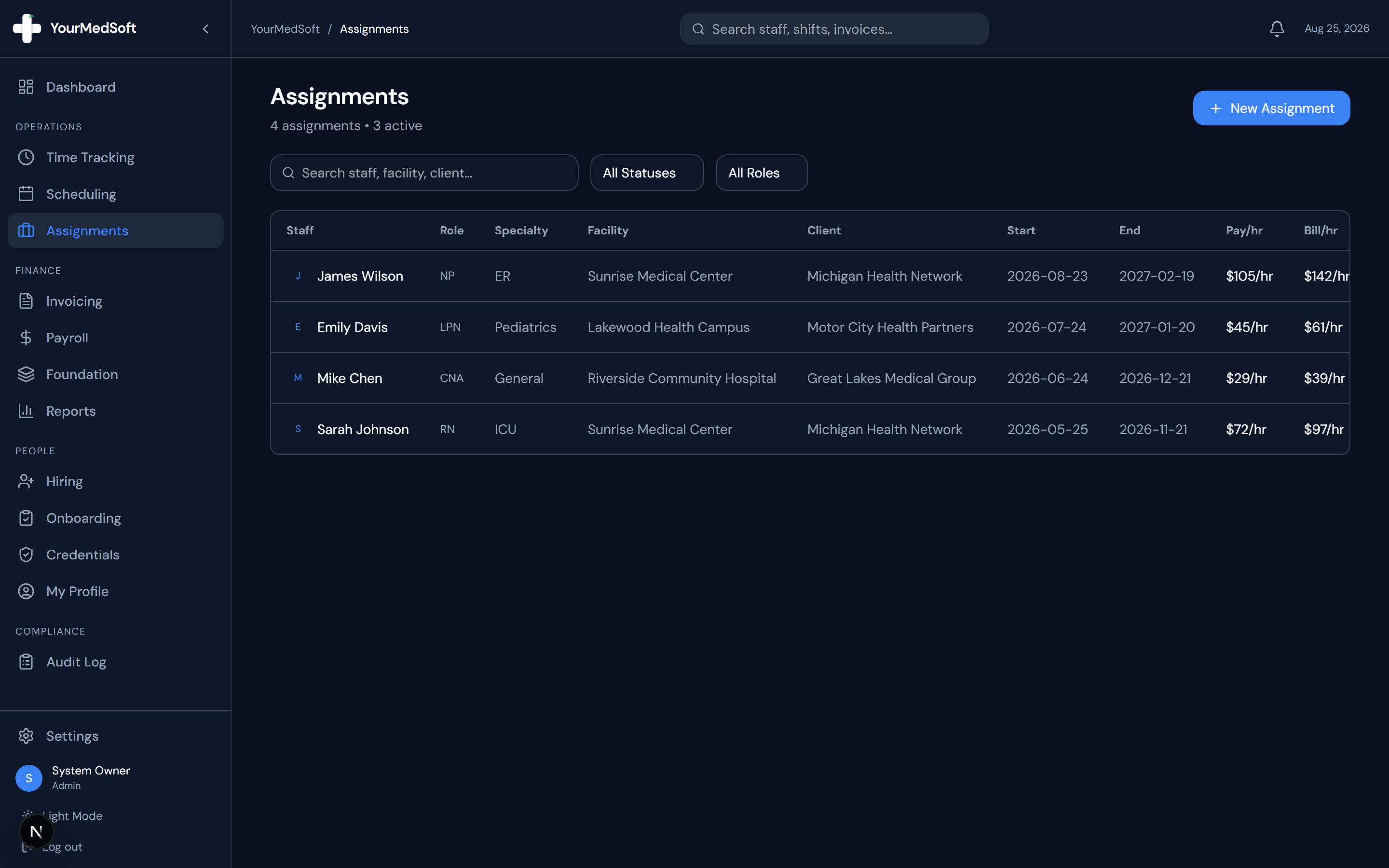
Click "Assignments" in the left sidebar menu to open the contract placements dashboard.
Assignments manager and multi-week travel contract placement builder.
Open the New Assignment Modal
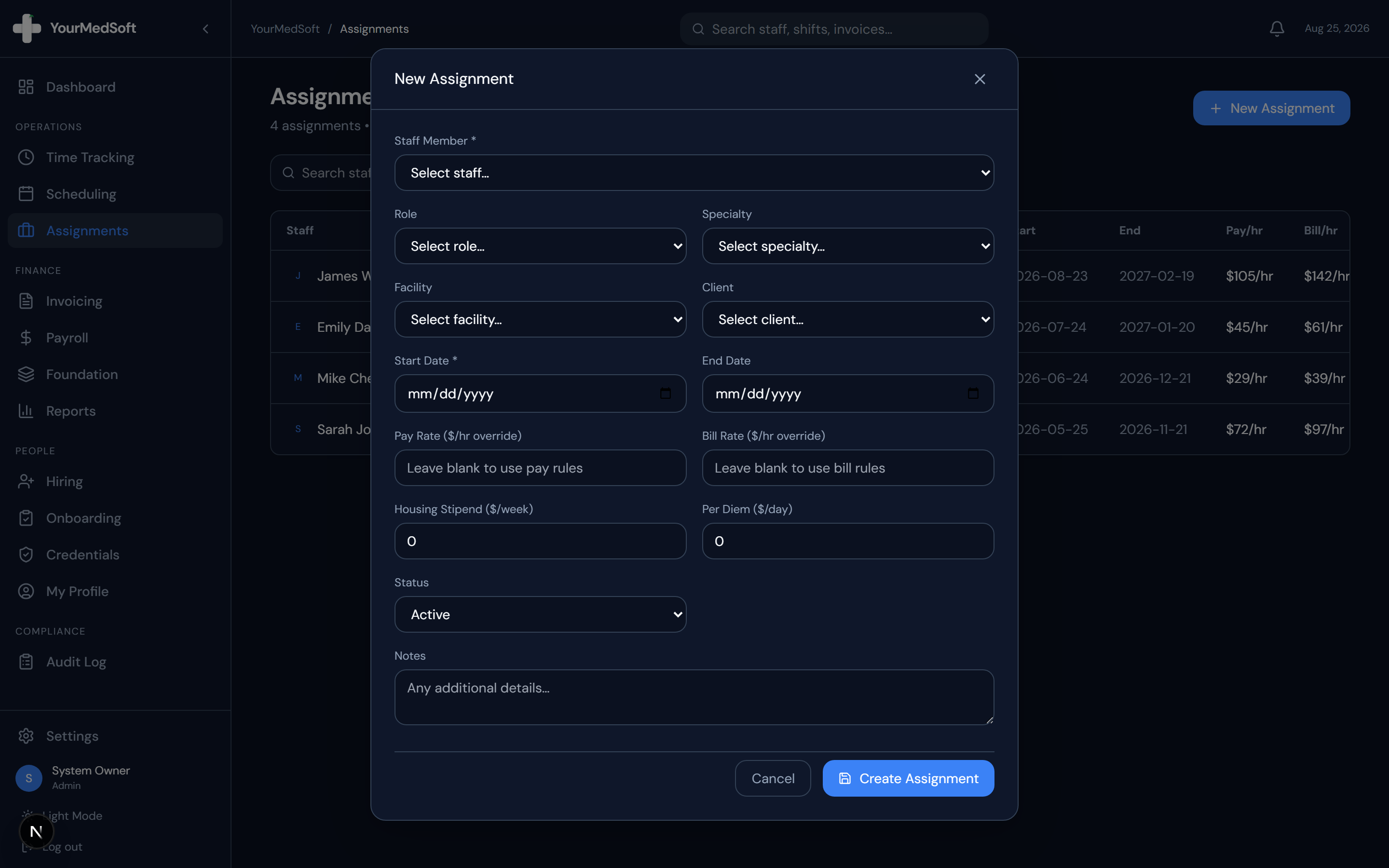
Click the "+ New Assignment" button in the upper right corner.
Automate Your Healthcare Staffing Operations
YourMedSoft unifies scheduling, GPS time tracking, credentialing, and facility invoicing into one modern platform for healthcare agencies.
Select Staff, Role, and Location
Choose the staff member, clinical role, specialty, facility, and client from the structured dropdowns.
Enter Placement Dates
Select the Start Date and optional End Date for the contract period (e.g., standard 13-week travel contract).
Configure Compensation Overrides & Stipends
Optionally enter custom hourly Pay Rate and Bill Rate overrides. If this is a travel contract, specify the weekly Housing Stipend and daily Per Diem rate.
Set Status and Save
Choose "Active" (or "Draft" if pending signatures) and click "Create Assignment".
Pro-Tips & Best Practices
- Leaving the pay or bill rate blank instructs the system to automatically fall back to the standard Pay and Bill Rules configured in Foundation.
- Contracts with end dates within 14 days display a warning icon to prompt your team to initiate renewal discussions.
Troubleshooting & Operational Edge Cases
Issue: Assignment or Action Blocked
Operational Resolution: Verify that all prerequisites and credential requirements are satisfied before requesting an Admin override.
Issue: Notification or Alert Delay
Operational Resolution: Check the clinician profile contact details to ensure SMS and email alert preferences are enabled.
Frequently Asked Questions & Troubleshooting
How do assignments connect to daily shifts?
When posting daily shifts in the Scheduling module, linking the shift to an active assignment automatically pre-fills all rates and worker details.
Was this guide helpful?
Your feedback helps us continuously improve our documentation.
Recommended for Assignments & Contracts
13-Week Travel Nurse Contract Template
Attorney-reviewed travel contract with GSA lodging per diems, travel stipends, and cancellation rules.
41+ State eNLC Compact License Map
Interactive map checking multi-state nursing licensure privileges and state-by-state reciprocity.
Travel Nursing Agency Software
End-to-end travel staffing platform for milestone extensions, stipends, and hospital contracts.